
Farmative uses a secure, passwordless login. Instead of a password, you'll receive a one-time 6-digit verification code by email each time you sign in. This article walks you through the login process step by step and covers what to do if something goes wrong.
How to Log In
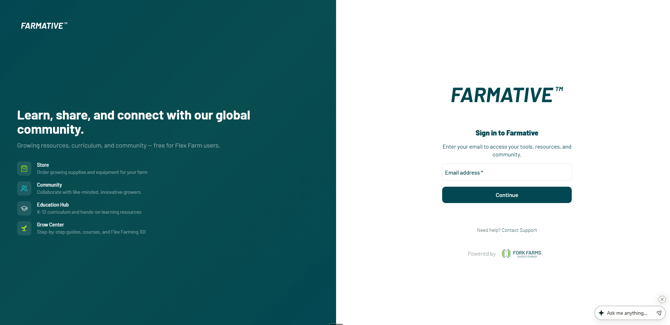
Step 1. Go to farmative.forkfarms.com. You'll see the "Sign in to Farmative" page.
Step 2. Enter the email address associated with your Farmative account and click Continue.
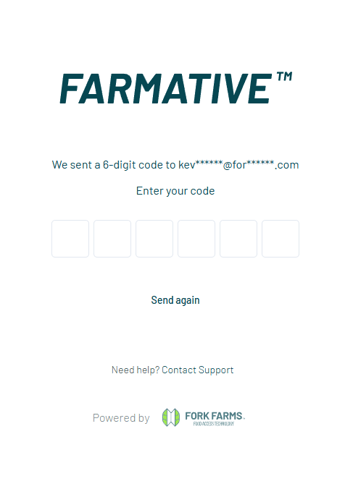
Step 3. You'll see a screen that says "We sent a 6-digit code" with your partially masked email address and six input boxes.
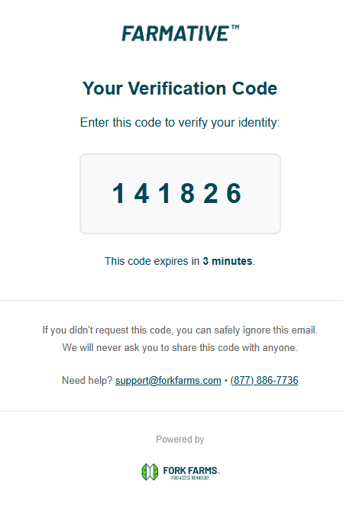
Step 4. Check your email inbox for a message with the subject "Your Verification Code." It comes from Farmative (Fork Farms). The email contains your 6-digit code and notes that it expires in 3 minutes.
Step 5. Enter the 6-digit code on the verification screen. Once accepted, you'll land on your Farmative dashboard.
If this is your first time logging in, you'll see the Welcome to Farmative profile setup screen instead. See Getting Started with Farmative for details on completing your profile.
Troubleshooting Login Issues
I didn't receive the verification code
- Check your spam or junk folder. The email comes from Farmative (Fork Farms) with the subject "Your Verification Code." It can sometimes be filtered.
- Click "Send again" on the code entry screen to request a new code.
- Verify your email address. Make sure you're entering the same email you used to sign up or the email your admin used to invite you. A typo will send the code to the wrong address.
- Wait a moment. Codes usually arrive within a few seconds, but occasionally take up to a minute.
- Check with your IT team. Some school or organization email systems block automated emails. Your IT team may need to allow emails from no-reply@farmative.forkfarms.com.
My code expired
Verification codes expire after 3 minutes. If your code has expired, click "Send again" on the code entry screen to receive a new one. Enter the new code promptly.
I requested too many codes
If you've requested multiple codes in quick succession, you may be temporarily rate-limited. Wait a few minutes, then try again with a single request.
I'm getting an error when I enter the code
- Make sure you're using the most recent code. If you clicked "Send again" multiple times, only the latest code will work.
- Check for extra spaces. Make sure each digit is in its own input box with no extra spaces.
- Request a new code. Click "Send again" and try once more with the fresh code.
I can log in but don't see the apps I expect
If you can log in successfully but your dashboard shows locked apps or "Become a Partner to Unlock," your account may not be connected to your organization yet. See the "I Have Fork Farms Technology but Can't Access All Apps" section in Getting Started with Farmative for steps to get connected.
I don't have a Farmative account yet
You can create one at farmative.forkfarms.com — just enter your email and follow the steps above. For full details on account setup, see Getting Started with Farmative.
Still Need Help?
If you're still having trouble logging in after trying the steps above, contact Fork Farms Support:
- Chat — Use the chat widget in the bottom-right corner of the page
- Email — support@forkfarms.com
- Call — (877) 886-7736